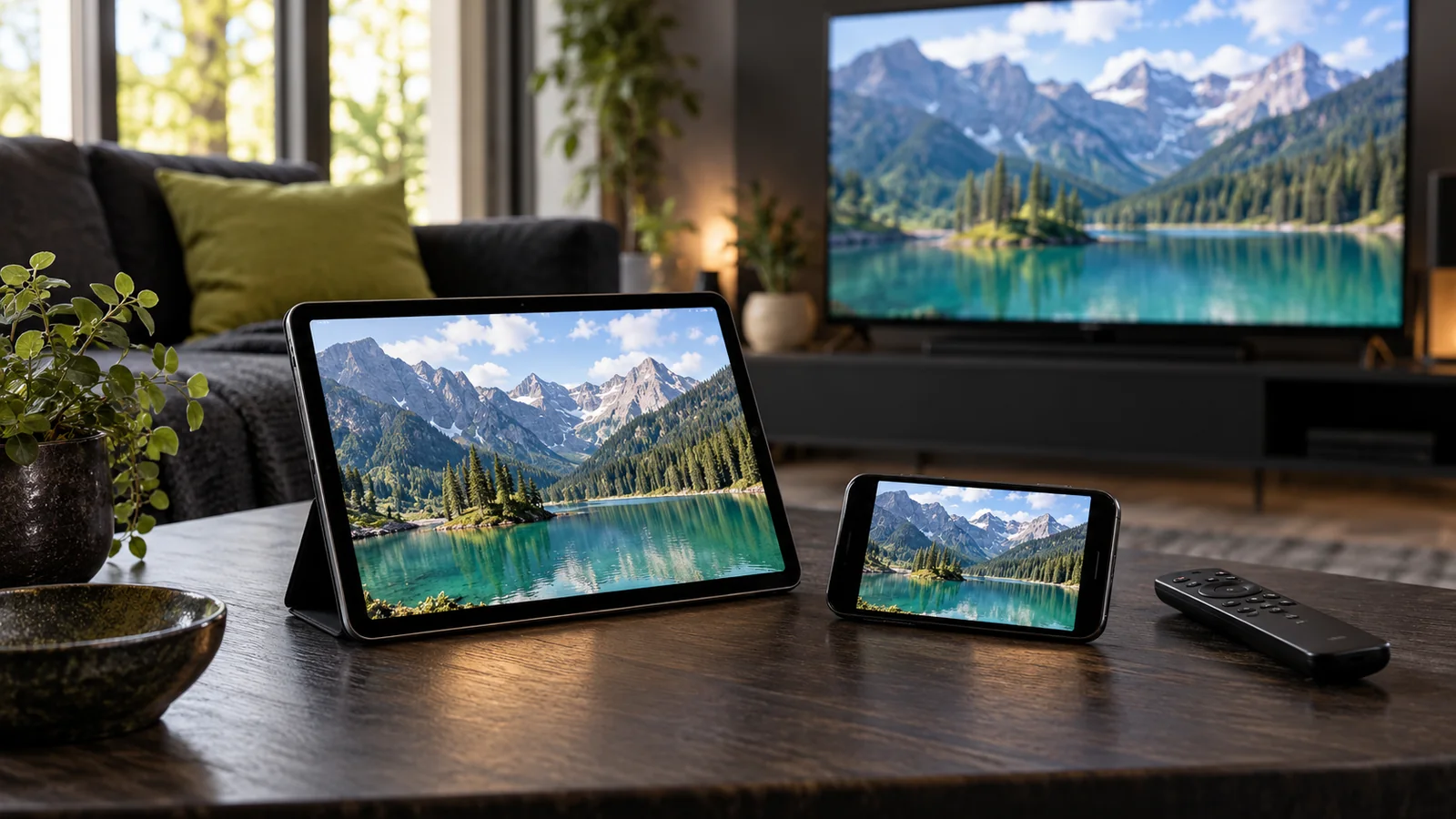
Choosing an IPTV player should always start with your specific hardware and remote control preferences, rather than the app's marketing claims or flashiest interface. The best player is one you can navigate effortlessly with your remote and that natively supports your provider's login protocol. A single app is rarely optimal for both a living room TV remote and a mobile touchscreen.
In this guide, we walk through seven essential checks to help you choose the right IPTV player for your home setup. Our goal is not to promote a single player, but to help you find the best match for your devices. For direct download links and device-specific instructions, visit our Apps and Devices Guide.
1. Verify Operating System and Control Method
First, note the exact model and operating system of your device. Knowing just the television brand is not enough, as different model years from Samsung, LG, or Sony run completely different operating systems and app stores. Always check app availability directly on your device or via the developer's official store page. Never assume compatibility based on another platform's screenshots.
Consider how you interact with the player daily. On a TV, navigating channel lists, search tools, and audio tracks must work effortlessly with directional buttons. On a mobile phone, touch target sizes, portrait-to-landscape rotation, and subtitle scaling become critical. For instance, TiviMate's official listing clearly states it is designed specifically for Android TV and remotes, and is not optimized for handheld touchscreen use.
2. Confirm Login Method Before Upgrading
Find out what type of credentials your provider provides. You will generally receive an M3U playlist URL or Xtream Codes credentials (server URL, username, and password). Check the app's documentation to confirm that your specific version supports your login method. A visually similar login screen does not guarantee feature parity.
If migrating to a new player, keep your existing working configuration intact until the new app is verified. Never guess or alter the server URL and credentials. Once confirmed, follow our step-by-step setup guide.
3. Distinguish Between the Player App and the Stream Feed
An IPTV player is simply an empty media browser. Downloading or purchasing a player app does not provide any video content. Both TiviMate and Smarters Pro explicitly state in their documentation that they do not supply streams, channels, or content. Player premium feature unlocks and your streaming subscription pass are entirely separate purchases.
While Smarters Pro has builds for numerous platforms, availability must be checked on the developer's website and your device's store. Never assume that similarly named third-party apps are genuine. Always verify developer credentials and only use authorized streaming sources.
4. Test Essential Daily Features With Real Feeds
A feature list describes what an app can potentially handle; it does not guarantee that every feature functions seamlessly with every stream provider. EPG guide sync, subtitle tracks, multi-language audio, and catch-up depend heavily on the source stream metadata. Seeing an EPG listing does not mean catch-up or recording is enabled.
- Test several channels and ensure your top favorites are easy to find and favorite.
- Open the EPG guide and compare guide timestamps against your device's local clock.
- Switch audio tracks and subtitles on a live broadcast to confirm synchronization.
- Force close the app and reopen it to verify that your channel list and preferences persist.
If playback issues arise, isolate the cause before spending money on another player. Test the same stream line on a single device at a time. Network bandwidth, router firewall rules, and stream source health can all affect playback. Our Troubleshooting Runbook helps you isolate credential, network, and app issues.
5. Review In-App Purchases and License Restrictions
Check your app store to understand which features are free versus locked behind a premium paywall, how many device activations are included, and how renewals work. Licensing structures vary widely across platforms. We do not quote app pricing here, as developers frequently modify prices across different regional app stores.
Do not confuse an app's device activation count with your IPTV provider's simultaneous connection limit. Being able to install a player on five TVs does not give you permission to stream on all five screens at the same time using a single line. Review the terms of both purchases carefully and check our Order & Activation Details.
6. Check Developer Credibility & Secure Your Credentials
Verify download links carefully, checking developer identity, update history, and privacy policies. Never install an APK from an unverified messaging link simply because the name sounds familiar. If an app is absent from your device's official app store, follow the manufacturer's verified sideloading procedure.
Your M3U playlist URL often contains your username and password in plaintext. Always blur or redact these credentials before sending screenshots to support channels. When diagnosing an issue, support agents only need your device model, app version, and error message text—never your full password.
7. Make Your Decision Based on Hands-On Testing
A proper test simulates normal, everyday viewing. Test the player on the exact device, network connection, and remote control you plan to use daily. Switch channels, bookmark a favorite, and adjust subtitle settings. If basic navigation feels frustrating during a 10-minute trial, a flashy menu design will not make up for it.
| Primary Setup | Most Critical Check |
|---|---|
| Living Room TV & Remote | Fast navigation of channel lists and guide without needing a pointer/mouse. |
| Smartphone or Tablet | Responsive touch controls, aspect ratio locking, and legible subtitles. |
| Multiple Household Devices | Keep app licenses and concurrent stream connection limits separate. |
| Migrating From Older App | Verify Xtream/M3U support and test the new player before removing the old one. |
Most Common Selection Mistakes
The most frequent mistake is paying for a premium player app before verifying that it supports your provider's login method or device OS. The second is assuming an app purchase includes streaming channels. The third is switching player apps after every stream freeze, rather than checking Wi-Fi signal strength or provider server status.
Avoid selecting an app solely based on claims of "8K Ultra HD Playback." Player software cannot invent resolution or bitrate that is not present in the incoming stream. Prioritize stability, responsiveness, and verified remote control navigation over inflated feature lists.
Final Checklist Before Selecting a Player
- I know my device's exact model number and OS version.
- I verified the developer's identity and downloaded from an official store.
- My assigned login method (M3U or Xtream) is fully supported and tested.
- Remote control or touch navigation feels natural and responsive.
- I understand the difference between app licensing and subscription access.
- I checked that necessary subtitles, audio tracks, and EPG listings load.
- My login credentials remain private and secure.
When these seven checkpoints are covered, your choice of IPTV player will be grounded in practical everyday performance. If your device or login format remains unclear, clarify it with support before purchasing. Swapping apps is straightforward, but doing it right the first time saves setup headaches.
Sources & Disclaimers
Player specifications and references were verified from developers' official channels: TiviMate Official Google Play Listing and Smarters Pro Official Developer Portal. Feature sets and store availability may change over time. All third-party trademarks and app names belong to their respective copyright holders, and reference does not imply endorsement or partnership.
Illustrations and mockups shown are conceptual diagrams of consumer hardware and control styles, not literal screenshots of any proprietary software UI.