
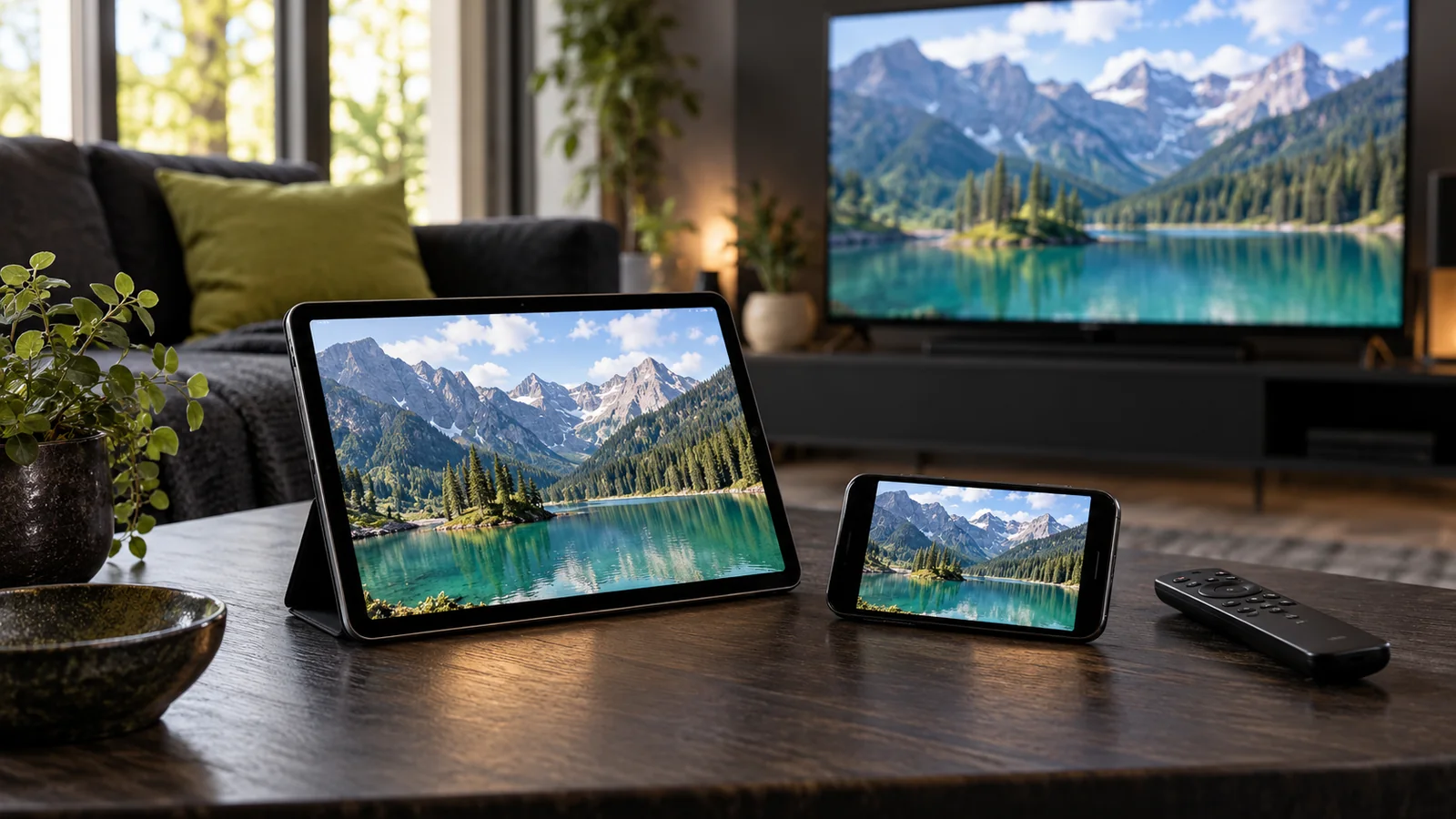
Choosing an IPTV player begins with your hardware and daily viewing habits, rather than brand hype or flashy skin interfaces. A great player is one that you can navigate effortlessly with your television remote or smartphone touch controls, and that supports your service's native connection format. The most comfortable app for a handheld screen is rarely the best fit for an oversized living-room display.
In this guide, we review seven practical criteria to help you identify the best IPTV player application for your setup. Our goal isn't to declare a single winner for everyone, but to empower you to make an informed, hassle-free decision. For download links tailored to each platform, visit our Supported Devices & Apps Guide.
1. Verify Operating System and Control Method
Note your hardware's exact model number and operating system version. Knowing the TV manufacturer is rarely enough, as different model years from the same brand frequently run distinct app stores. Confirm whether the app is available directly inside your device's native marketplace or requires developer sideloading.
Consider ergonomic factors as well. On a living room television, channel navigation, category switching, and audio selection must operate flawlessly with a directional remote. On a phone, tap target sizes, screen orientation, and subtitle scaling are essential. For instance, TiviMate's official specifications state that the app is engineered specifically for Android TV remotes and is not optimized for touchscreens.
2. Verify Connection Format Before Payment
Confirm what authentication details your provider supplies. You might receive an M3U playlist URL, or Xtream Codes API credentials consisting of a Server URL, Username, and Password. Verify that your desired player supports that exact login format before purchasing any premium license.
When migrating between players, keep your previous working application installed until the new player is fully tested. Avoid modifying Server URLs or usernames by guessing. Once credentials are in hand, refer to our Step-by-Step Setup Guide.
3. Separate Player Software from Content Services
A media player merely parses and decodes the multimedia feeds you input. Downloading a player app does not automatically include streaming channels or movies. Leading players like TiviMate and IPTV Smarters Pro explicitly state in their documentation that they do not provide media content. Upgrading an app's premium features and buying a streaming pass are separate transactions.
Smarters Pro offers builds across multiple platforms, but version support must be confirmed on the official publisher website and in your device's native app store. Do not assume all Smart TV brands share the same feature set, and always verify developer authenticity.
4. Test Everyday Functions on Your Live Feeds
A player's spec sheet lists what it is capable of decoding, but that doesn't guarantee every broadcast stream will render identically. Electronic Program Guides (EPG), closed captions, multiple audio language tracks, and catch-up depend on both the source stream and player decoding logic.
- Flip between several channels and confirm favorites can be bookmarked quickly.
- Open the EPG guide and ensure local system time matches the broadcast schedule.
- Switch subtitle and audio language tracks on broadcasts that carry multi-track audio.
- Close the application completely, restart it, and confirm playlists reload instantly.
If a feed stutters, isolate the issue before purchasing another player. Test the stream on a single device first. Network bandwidth, router location, and Wi-Fi congestion impact streaming just as much as player software. Our Troubleshooting Guide helps isolate network, authentication, and single-feed issues.
5. Understand App Licensing and Device Limits
Check whether a player offers a free tier or requires a lifetime or annual license for advanced features like multi-screen viewing or recording. App licenses are set independently by third-party developers and vary across platforms.
Do not confuse an app's device activation slots with your IPTV provider's simultaneous stream limit. Being allowed to install an app on five screens does not permit streaming on all five screens concurrently under a single-connection plan. Review your Order & Subscription Terms carefully.
6. Verify Publisher Authenticity & Protect Credentials
Only download media players from official app stores (Google Play, Amazon Appstore, Apple App Store). Avoid unknown third-party APK links sent across messaging apps. If your TV lacks native app store support, consult official manufacturer guides before sideloading software.
M3U URLs often contain your encrypted login credentials. Always obscure sensitive credentials before sharing screenshots with support staff. Diagnosing a connection roadblock typically requires only your device model, app name, and the visible error code.
7. Make Your Decision with a Practical Live Test
The most reliable evaluation mimics everyday family viewing. Test the player on your primary television, over your everyday home network, using your remote control. If the interface feels clunky during a trial session, fancy visual themes won't make up for frustrating ergonomics.
| Streaming Setup | Key Evaluation Focus |
|---|---|
| Smart TV & Remote | Remote navigation, instant channel switching, on-screen guide legibility. |
| Mobile & Tablet | Responsive touch targets, screen orientation lock, smooth playback controls. |
| Multi-Device Household | Distinction between app device licenses and concurrent streaming connections. |
| Migrating Players | Confirmation of Xtream/M3U support before deleting previous player profiles. |
Common Player Selection Mistakes
A frequent mistake is paying for a player license before verifying whether it supports your provider's login protocol. Another is expecting a player app to come bundled with live channels. A third is switching apps after every minor stream freeze without testing whether local Wi-Fi or router settings are at fault.
Avoid selecting an app solely based on promotional 4K badges. Quality badges on an app icon do not guarantee high-definition streams if the broadcast feed itself is standard definition. The winning choice is a reliable, lightweight player that operates intuitively with your daily screen controls.
Final Pre-Purchase Checklist
- I know my hardware model number and operating system version.
- I verified the app publisher and downloaded from an official app store.
- My connection format (M3U or Xtream Codes) is fully supported.
- Remote control or touchscreen navigation feels intuitive and fast.
- I understand the distinction between player licenses and streaming plans.
- I verified EPG schedule synchronization and subtitle language options.
- I keep my login credentials securely stored and private.
With these seven criteria verified, your player selection will be built on performance rather than guesswork. If you need personalized guidance on matching hardware and players, our team is always accessible on WhatsApp.
Sources & Disclaimers
App specifications were verified from official publisher documentation, including the Google Play listing for TiviMate and the official Smarters Pro developer portal. Software availability and feature sets may vary over time. All brand names belong to their respective owners and are mentioned purely for technical compatibility reference.